Login
- Open browser
- Navigate to
https://siue.qualtrics.com
A branded site that requires permission to access
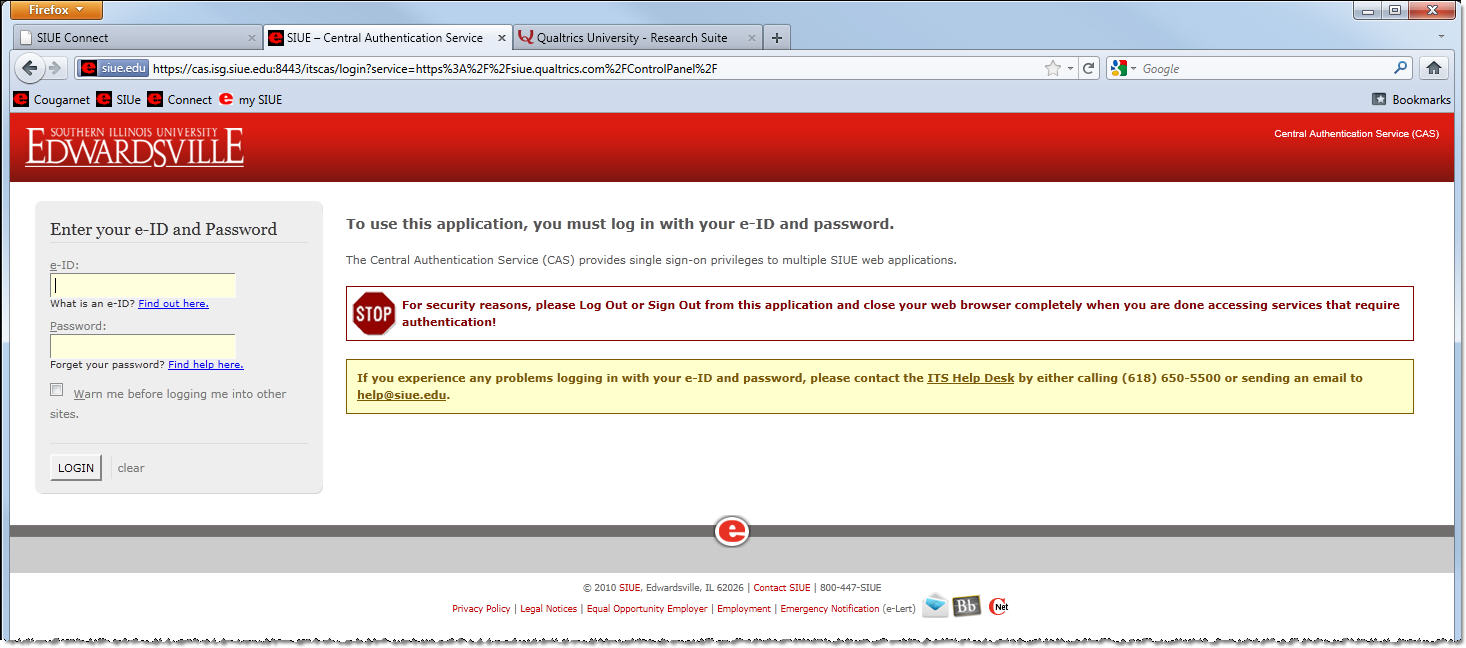
- SIUE Central Authentication Server login will open
Enter e-ID
Enter e-ID password
Click Login
- Qualtrics opens
Do not go to www.qualtrics.com to log in. If after logging into and using Qualtrics and additional capacity is required, contact the ITS Help Desk, ext. 5500 or email
help@siue.edu to request a ticket to elevate your account. Qualtrics is not located at SIUE web sites. SIUE is a Brand within Qualtrics.
Qualtrics
- Available tabs:
- My Surveys
- Create Survey
- Edit Survey
- Distribute Survey
- View Results
- Polls
- Library Qualtrics
|
SIUE Login
|
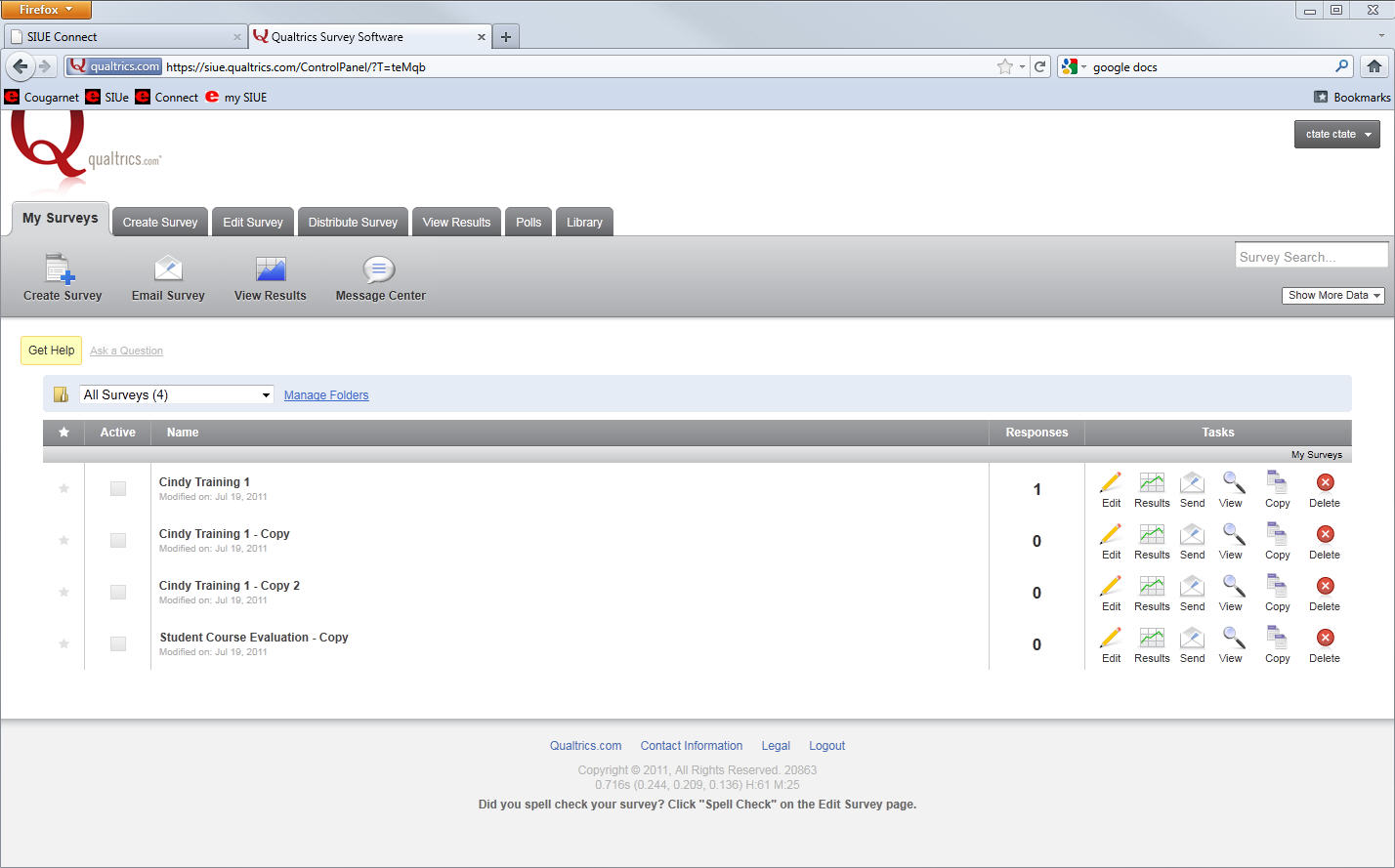
My Surveys
- The home tab
- List of surveys
If no surveys, will be given link to create survey
Select survey folders to view
Manage folders
- Survey buttons
Create survey moves to Create Survey tab
Email survey moves to Distribute Survey tab
View Results moves to View Results tab
Message Center opens Messages window
- Survey Tasks
Edit moves to Edit Survey tab
Results moves to View Results tab
Send moves to Distribute Survey tab
View opens a new browser window/tab to view survey as it will look when published
Copy opens popup to rename survey and do a save as
Delete allows you to delete survey and associated data
|
Qualtrics - My Survey
|
Create Survey
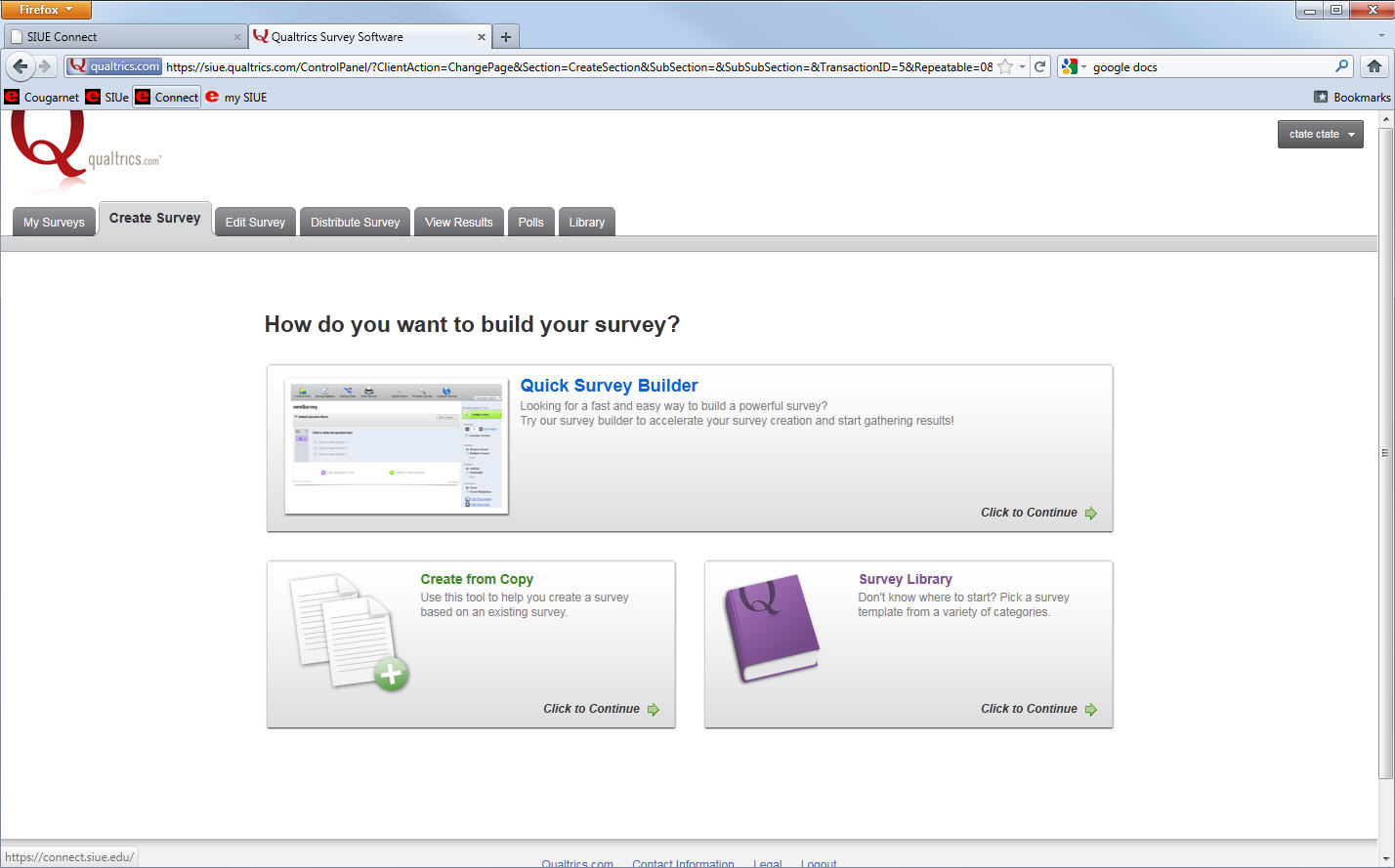
Three options for creating a new survey:
- Quick Survey Builder
Click to Continue
Popup opens
Survey Name - Enter name
Folder - Enter folder name if applicable
Click Create Survey opens Edit Survey
- Create from Copy
Click to Continue
Popup opens
Survey to copy - Select survey
New survey name - Enter new name
Folder - Enter folder name if applicable
Click Create Survey opens Edit Survey
- Survey Library
Click to Continue
Popup opens
Please select a library - Personal or Global
Category - Select if applicable
Survey - Select survey to copy
New survey name - Enter new name
Folder - Enter folder name if applicable
Click Create Survey opens Edit Survey
|
Qualtrics - Create Survey
|
Edit Survey
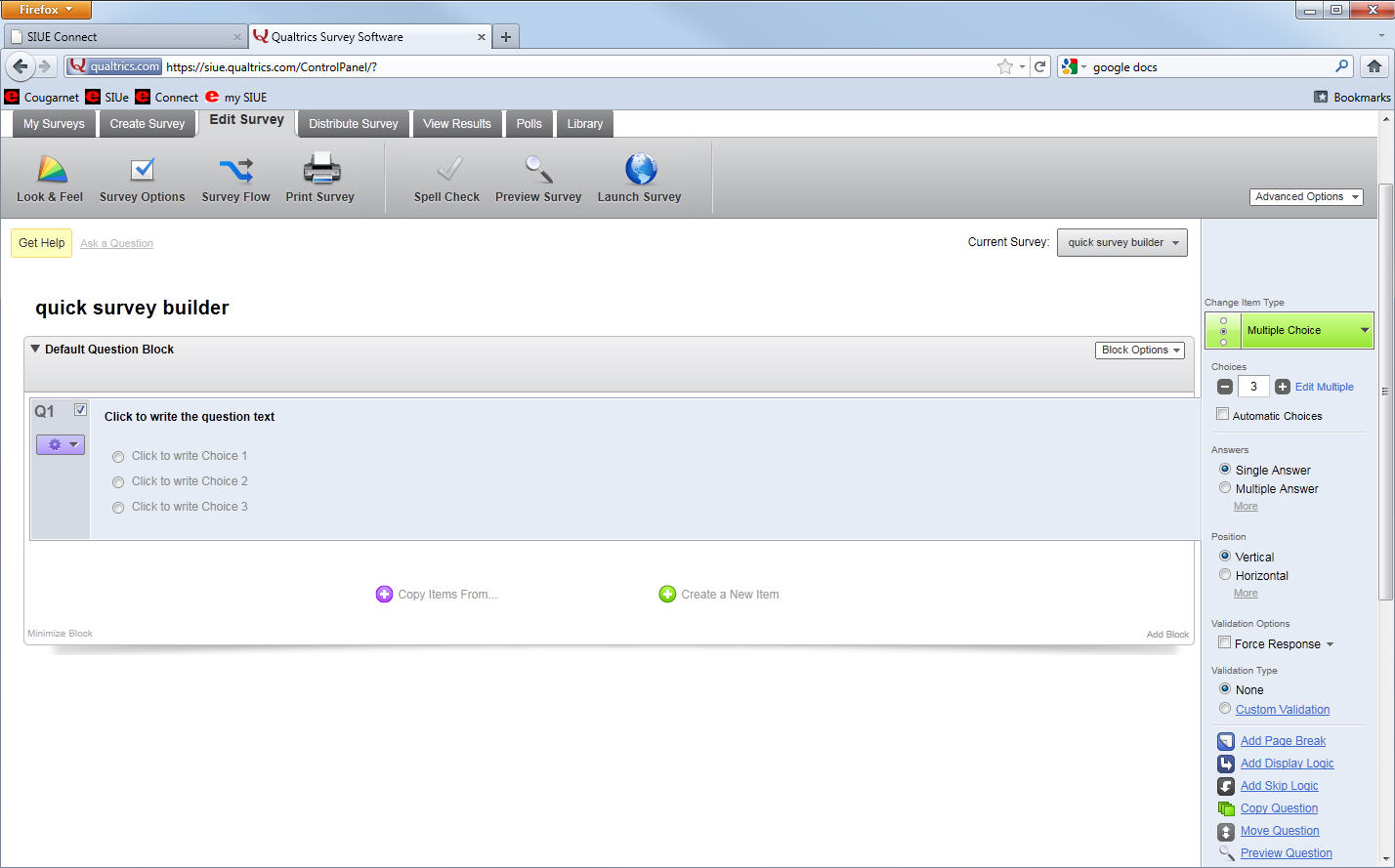
- If survey selected, will open with survey questions/answers
- If creating a new survey from Quick Survey Builder, will open with blank survey
- Insert new questions/answers
Copy from another survey or library
Create a new question
- Current Survey - Shows current survey being edited, select from drop down menu to change
- Edit questions
Click within question block
Make changes to question text
Select answer type and option from the menu on right
- Survey Buttons
Look & Feel - Click to change look of buttons, progress bar, etc.
Survey Options - Click to select options for items; e.g., how survey ends, allow partial completion, expiration, etc.
Survey Flow - Click to designate flow of survey; example: If/then scenario; if yes to 1 skip to 4 and if no go to 2
Print Survey
Spell Check
Preview Survey opens a new browser window/tab to view survey as it will look when published
Launch Survey moves to Distribute Survey tab
- Advanced Options drop down menu with several options
- Get Help opens help page
- Ask a Question link opens request page
|
Qualtrics - Edit Survey
|
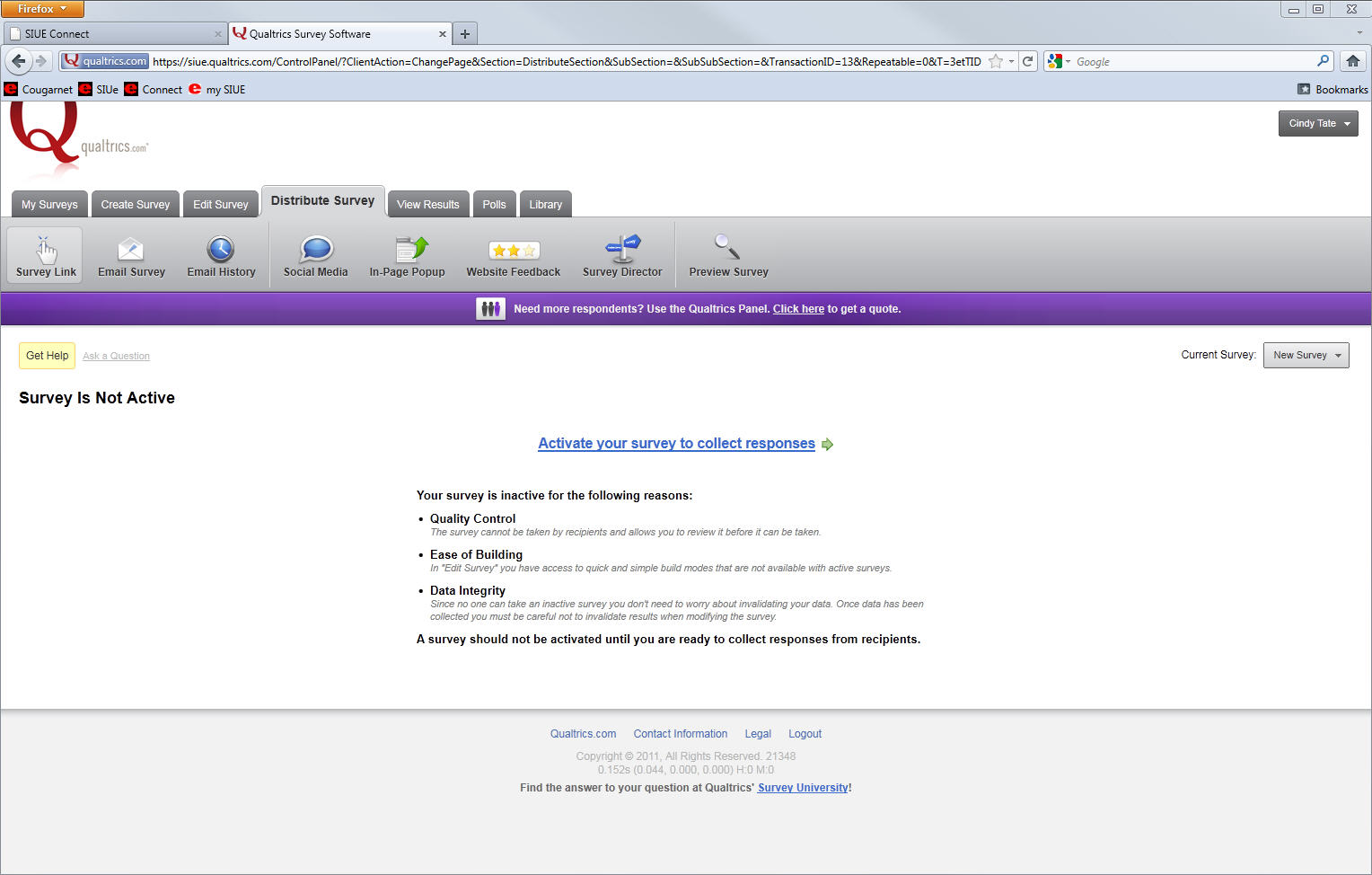
Distribute Survey
- Survey must be activated prior to distributing
Do not activate until ready to start collecting responses
- Current Survey - Shows current survey selected for distribution, select from drop down menu to change
- Click Activate your survey to collect responses to activate
Will be given a survey link (anonymous) that can be copy and pasted into an email or website
If need to collect tracking information click on Survey Mailer
Less control but more results
- Email Survey - Qualtrics mailer
Controlled but limited responses
- Email History - Tracking of emails sent and optional reminders and thank you emails
- Social Media - Publish survey on social media sites
Facebook
MySpace
Twitter
- QR (Quick Response) - Allows survey taker to use a smart phone to access survey; must have QR code reader application installed.
- In-Page Pop-up - Inserts a pop-up on a website with link to survey
- Website Feedback - Places a feedback link on website
- Survey Director - Direct where the link will point to
Certain days l link points to survey
Other days points to results
- Preview Survey - Opens a new browser window/tab to view survey as it will look when published
|
Qualtrics - Distribute Survey
|
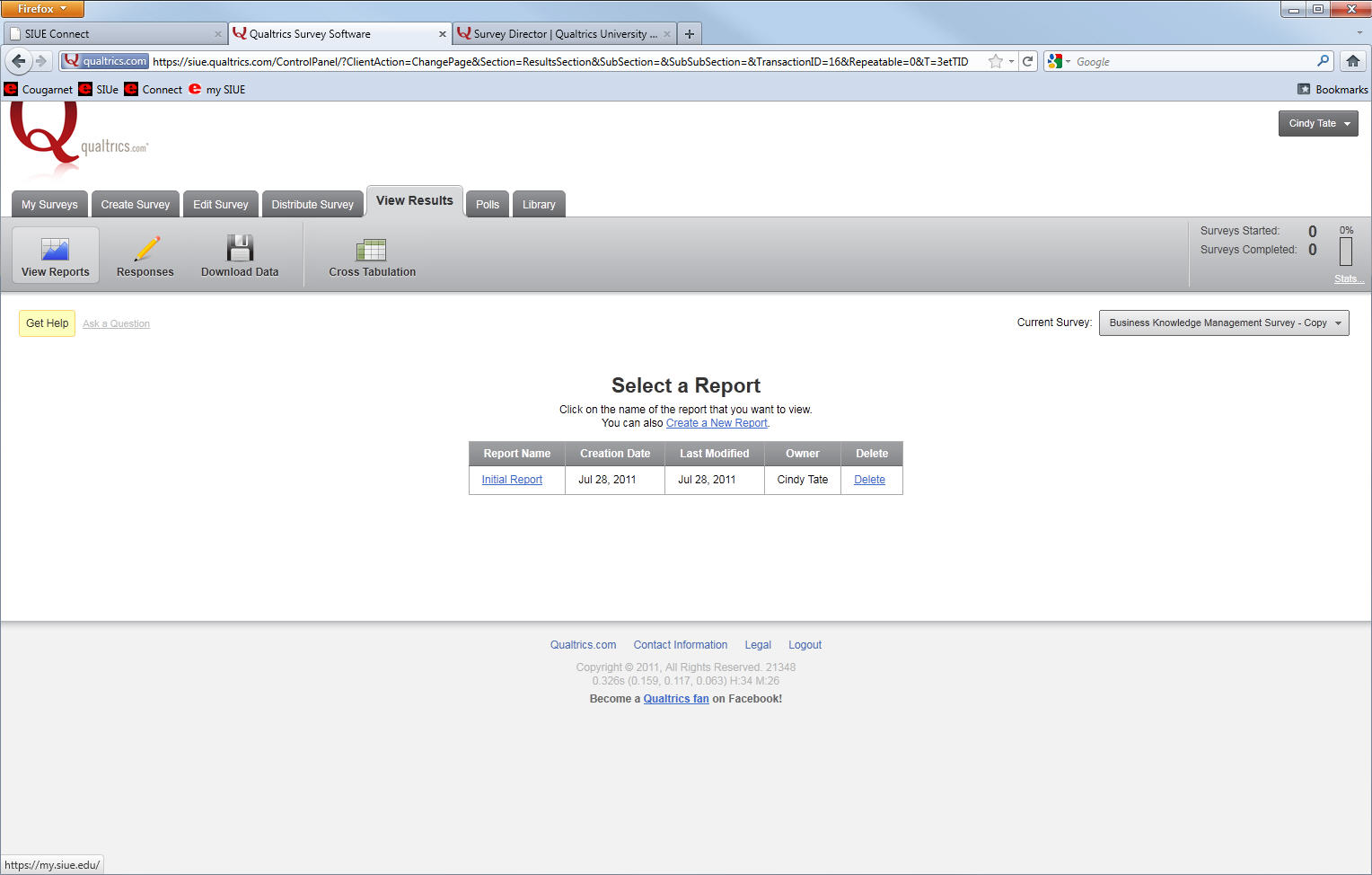
View Results
- Select report from list or create a new report
- Current Survey - Shows current survey available reports, select from drop down menu to change
- View Reports - Aggregate information on answers
Two options, select from existing reports or create new
Initial report available is basic report of number of responses for each question/answer
Reports can be configured using filters, inserting charts/graphs/tables, drill down
- Responses - Review answers by individual respondent
- Download Data allows information from a report to be download to further customize or view
Formats available include, csv (comma separated values) for Excel and Access, SPPS for analysis, xml and html
Downloading data does not delete the results
- Cross Tabulation uses tables to allows comparison of answers for multiple questions
|
Qualtrics - View Results
|
Polls
- Similar to survey except it is one question
- Select from current polls available, create a new poll
- Edit question and answers
- View results and reset
- Change the look and feel
- Copy
- Delete
- Click Add This Poll to Your Website button to generate code to insert to web page to publish poll
|
Qualtrics - Polls

|
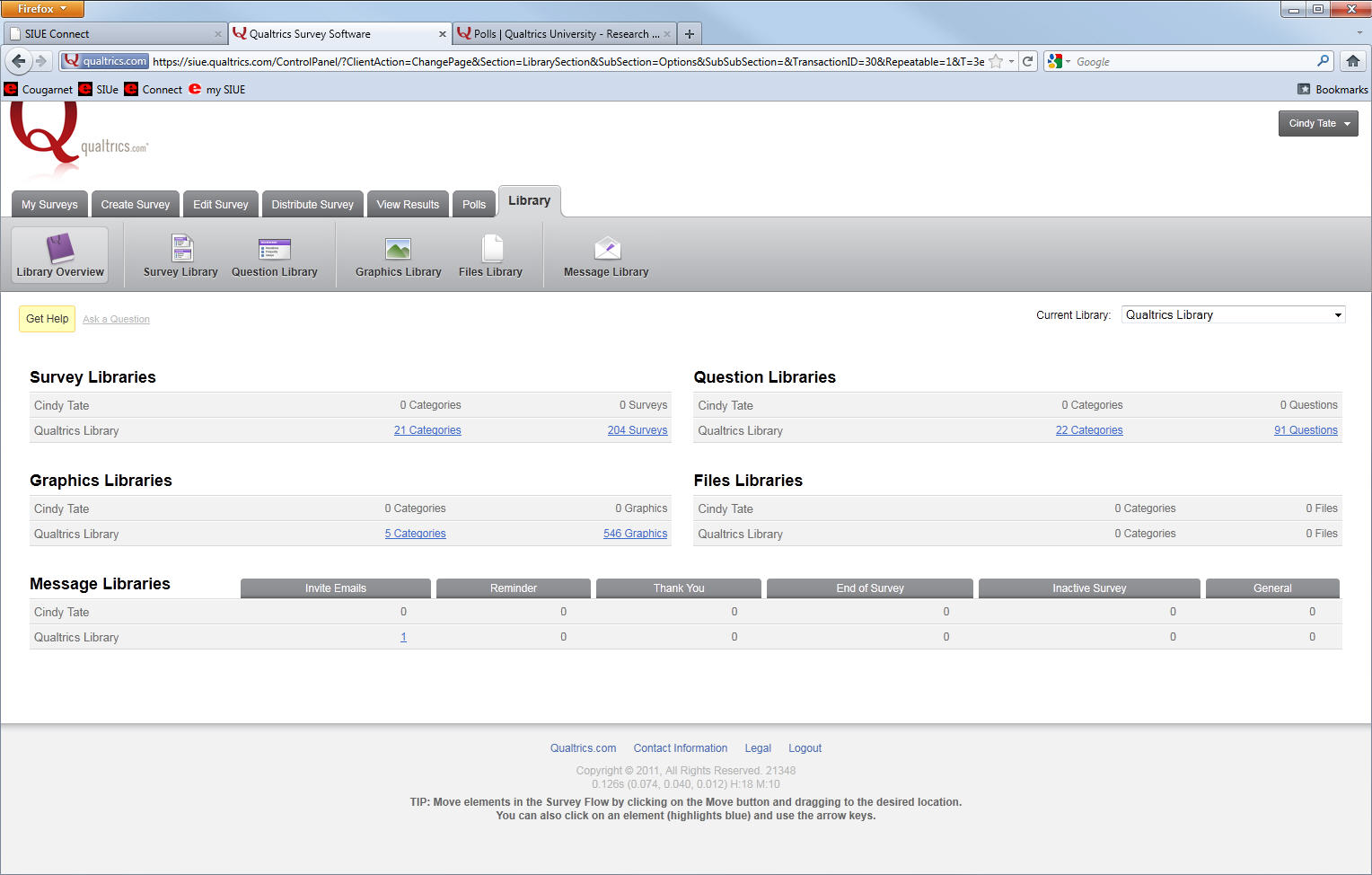
Library
- Depository of surveys, questions, graphics, files and messages
- Personal and global available
- Can copy from library to use as is or modify
Logout
- Click drop down menu for user
- Select Logout
|
Qualtrics - Library
|
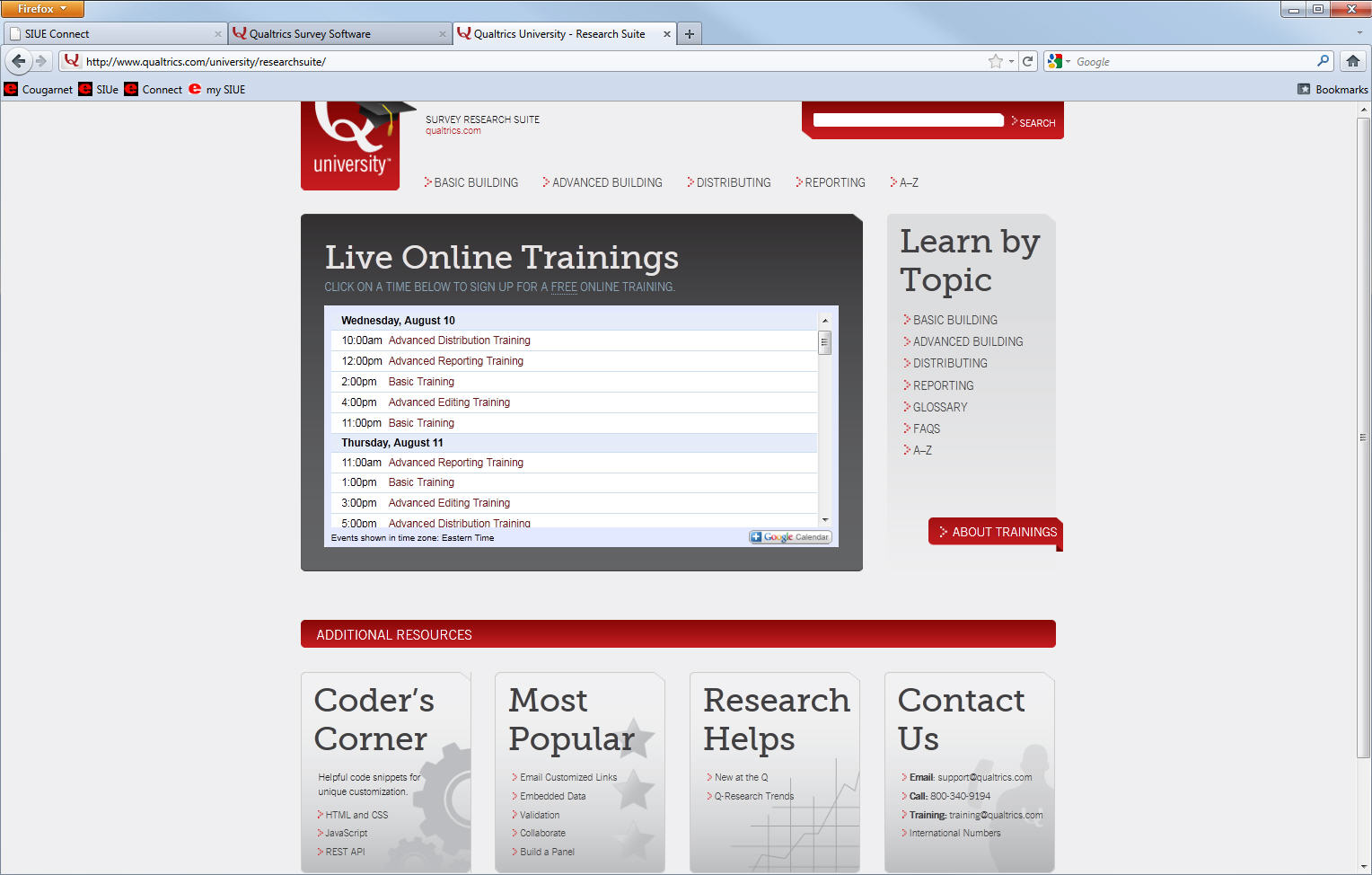
Additional Resources
|
Qualtrics University
|