The Basics - Viewing Your Events
You may remember this menu:
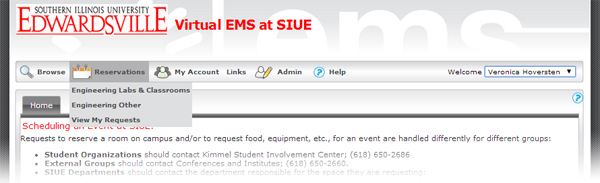
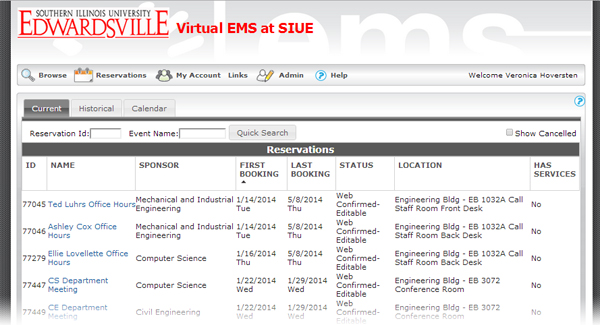
Choosing the "View My Requests" option will open a screen that looks like this:
Clicking on the event name will bring up the event reservation, another screen that should look familiar:
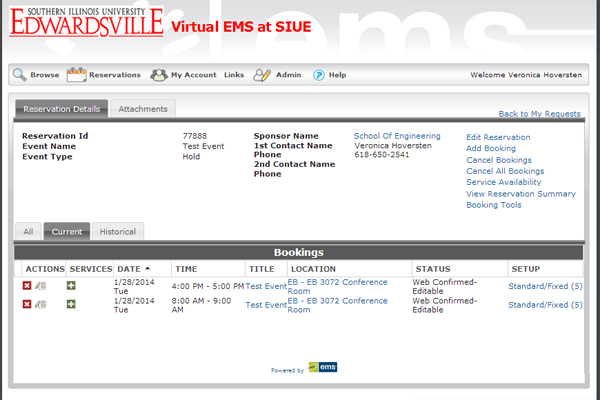
In the event section, if you click on "View Reservation Summary" you will get this screen:
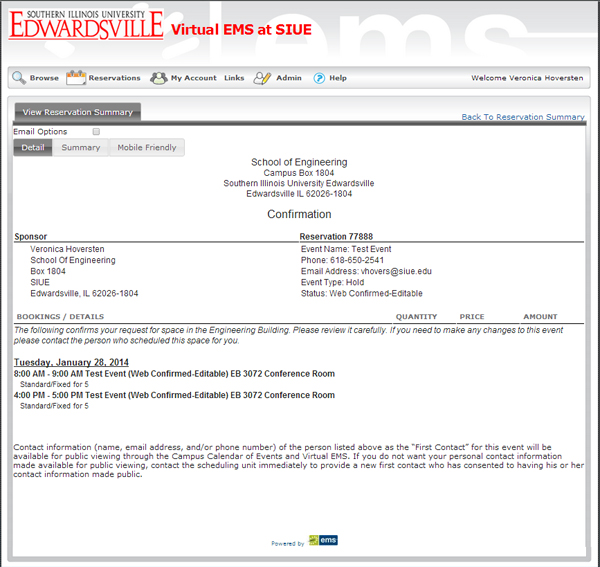
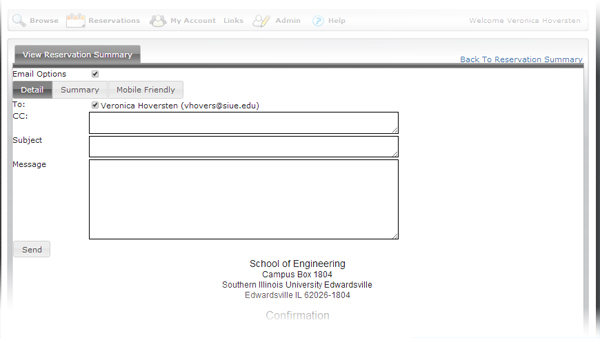
If you check the box by "Email Options" at the top left of the reservation, it will expand to show the standard to, from, message fields you're used to for email. The form will automatically fill in your info as "from" and the sponsor info in the "to" field. Add a subject line and message, click "submit," and a copy will be sent to the people you designate. A pop-up window will tell you that you've sent an email, but this page does not close!