The Basics - Finding Available Space
Choose the type of room you want to schedule. For the purposes of this training, we will only be using "Engineering Other."
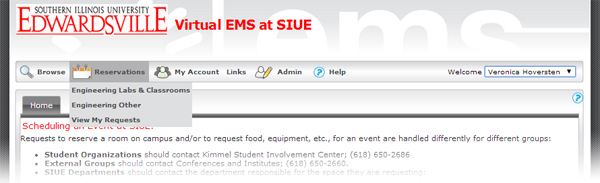
This will bring up the reservation screen.

Fill out the "When & Where" section.
To save time, if your event has multiple, regularly recurring bookings, you can click the "Recurrence" button next to the date.
When you have entered your request, click "Find Space." This will bring up a list of all the rooms that match your date criteria.

Check that the available rooms meet your expected attendance capacity.
Check that the room is available for all of your bookings. If it is not, you will need to go back to add another booking after you have added this one.
Click the room name for information on the room and options (such as white board vs. chalk board, and whether it has a data projector).
Click the green "+" symbol to add this booking - or if you clicked "recurrence," this set of bookings.
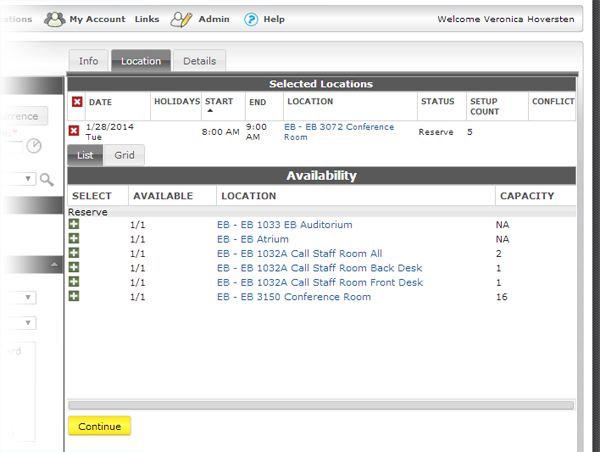
At this point, you can go back to the "When and Where" section to add another booking or click the yellow "Continue" button to move on to event details.