


Adobe App Access
SIUE provides Adobe access based on your role and the tools you need. Most users can access Acrobat, PDF tools, Adobe Express, and AI features without additional approval. Professional Creative Cloud applications require approval from ITS.
Not sure which Adobe apps you have? Compare licenses.
The table below highlights the most commonly used Adobe applications and features available through SIUE. Most users only need the Acrobat license provided for their role.
| Application / Feature | Student Acrobat Express |
Faculty/Staff Acrobat Studio |
Creative Cloud Pro Plus |
|---|---|---|---|
| PDF, Documents & AI | |||
| Basic PDF tools | ✓ | ✓ | ✓ |
| Acrobat Pro | — | ✓ | ✓ |
| Advanced PDF accessibility tagging | — | ✓ | ✓ |
| Adobe Express | ✓ | ✓ | ✓ |
| Adobe Firefly (AI creation) | ✓ | ✓ | ✓ |
| Creative & Media Applications | |||
| Photoshop Express | ✓ | ✓ | ✓ |
| Photoshop (full version) | — | — | ✓ |
| Illustrator | — | — | ✓ |
| InDesign | — | — | ✓ |
| Premiere Pro | — | — | ✓ |
| Lightroom / Lightroom Classic | — | — | ✓ |
| After Effects | — | — | ✓ |
| Audition | — | — | ✓ |
| Substance 3D applications | — | — | ✓ |
✓ = Included — = Not included. This comparison highlights commonly used applications rather than every Adobe product or service. AI capabilities and usage limits may vary by license.
How can I get access to Adobe apps?
No action is required if you only need Acrobat, PDFs, Adobe Express, or AI tools.
Current SIUE students automatically receive access to Acrobat, PDF tools, Adobe Express, document tools, and Adobe AI features.
You already have access to:
Acrobat, PDF tools, Adobe Express, document tools, and Adobe AI features.
Do you need Acrobat Pro, Photoshop, Illustrator, Premiere Pro, or another Creative Cloud application?
Students who need professional Creative Cloud applications should request access through Adobe Creative Cloud.
- Visit Adobe Creative Cloud Apps and sign in with your full SIUE email address.
- If Adobe asks you to choose an account type, select Company or School Account.
- Find the Creative Cloud application you need.
- Select Request access.
- ITS will review Adobe product requests and assign Creative Cloud access when appropriate.
Please allow up to one business day for your request to be reviewed.
Start by activating your Acrobat Studio access.
Faculty and staff can receive Acrobat Studio automatically by selecting the option below. Acrobat Studio provides access to Acrobat Pro, PDF tools, Adobe Express, document tools, and Adobe AI features. No ITS approval is required.
Step 1: Activate Acrobat Studio
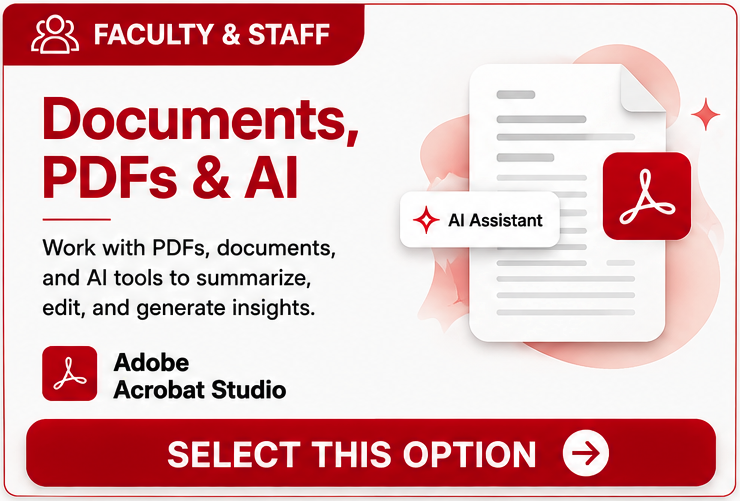
Select the image above and sign in with your SIUE account to activate your license automatically.
Optional: Request Creative Cloud Apps
Faculty and staff who need professional Creative Cloud applications must request access through Adobe Creative Cloud. These applications require ITS approval.
- Visit Adobe Creative Cloud Apps and sign in with your full SIUE email address.
- If Adobe asks you to choose an account type, select Company or School Account.
- Find the Creative Cloud application you need.
- Select Request access.
- ITS will review your request and assign Creative Cloud access when appropriate.
Please allow up to one business day for your request to be reviewed.
Installing Apps
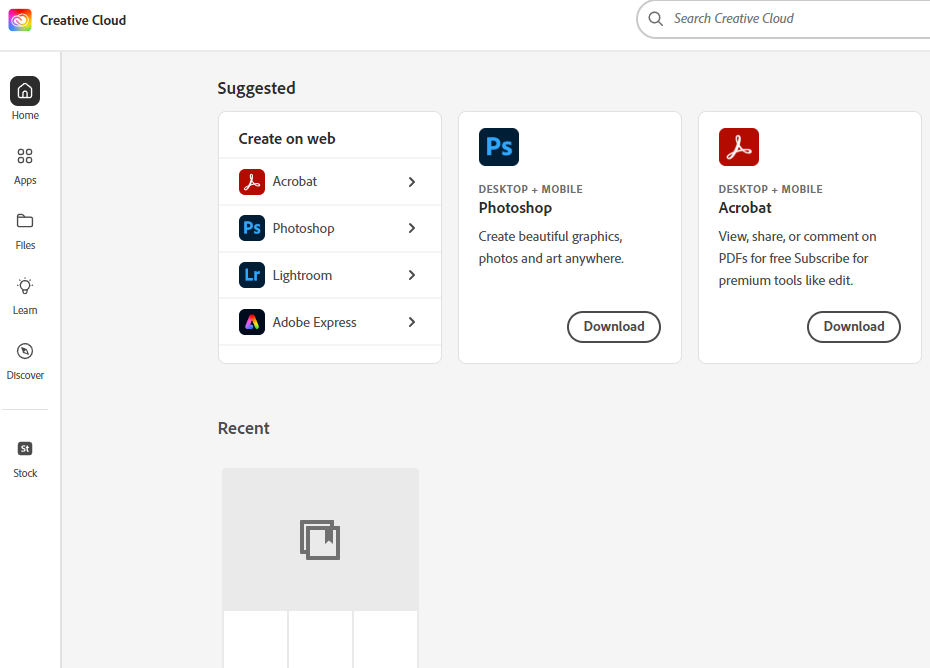
- Visit creativecloud.adobe.com and sign in with your full SIUE email address.
- If Adobe asks you to choose an account type, select Company or School Account.
- Open the Apps section.
- Select Install or Download for the application you would like to install.
If the app you need is not available for download:
Students: Find the application in Adobe Creative Cloud and select Request access. ITS will review the request and assign Creative Cloud access when appropriate.
Faculty and staff: If you need Acrobat Studio, return to the Faculty & Staff section above and activate your license using the automatic-approval link. If you need a professional Creative Cloud application, find the application in Adobe Creative Cloud and select Request access. ITS will review the request and assign Creative Cloud access when appropriate.
For more information on downloading and installing apps, see Download and Install Creative Cloud apps.


