|
|
This is a page to show how to add placemarkers in GoogleEarth
Google earth has become an absolute must in my geography class. I have tried to incorporate into the normal curriculum. One of the ways to really make it useful is to add placemarkers for key points on the globe.
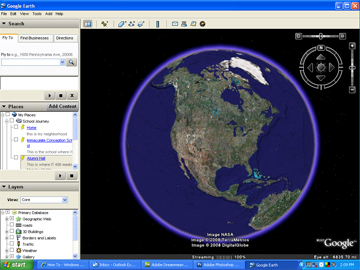
When you open GoogleEarth (of course after you download and install from http://earth.google.com), you will see a picture of the globe. You will then want to begin navigating to various sites on the globe.
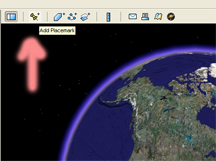
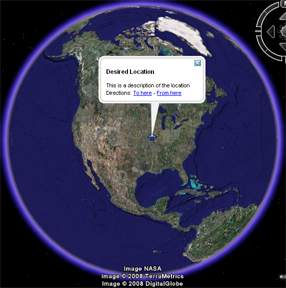
Once you get to the desired location and zoom level, you will want to mark your place for future reference. To accomplish this, you will click the picture of the thumb tack in the menu bar.
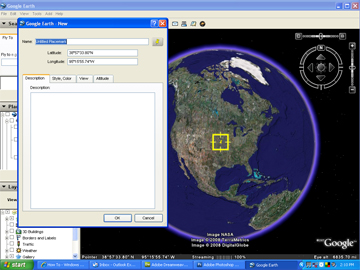
Soon, you will be given a prompt that allows you to name your location and put in a description of the particular location. What is particularly interesting is that you can allow copy and paste your favorite videos or pictures using whatever Embed HTML code that you have available
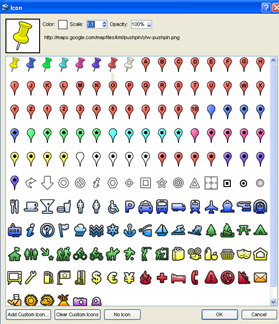
One fun little thing that is available is setting the icon that you would like displayed with your placemarker. If you are marking specific items, such as an airport, it might be handy to use an airplane icon. You can get to this menu by clicking to the right of the title in the properties prompt (previous photo).
Congratulations your placemarker is in its proper location. You can always go back and tweak this by right-clicking the icon and selecting properties.
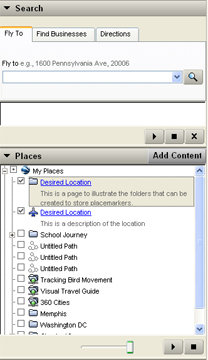
Next, you can certainly keep things organized by creating folders for your placemarkers. You can achieve this by right-clicking the "My Places" tab and selecting create new folder. Once you label your folder (maybe this is where you pick a specific continent or region), you may drag all of your placemarkers to it.
|
|
Webmaster Email: Scott Hudson |