|
|
|
|
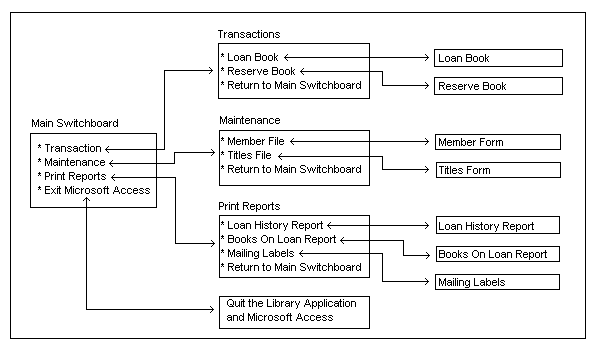
File = west3-4.htm; Updated 4/4/98 CMIS 450 West Overshoe Municipal Library Project #1 Assignment Setup. This assignment requires you to copy files from two different subdirectories (LAB03 and LAB04) from your instructor’s ftp site. Introduction. During the course of your work in designing the library application system you have developed a plan for the logical flow of processing in the application. This logical flow is given in Figure #1 below. Figure #1. Library Application Flow
This figure shows the number of options on the main switchboard form (main menu). It also shows the options on the Transactions, Maintenance, and Print Reports forms and the associated form and report objects that must be built to support the menu options. The processing described above is supported by the relational database tables you identified and initially designed for an earlier West Library assignment. In this lab you will:
Exercise 1-Create Member Table. You will use LAB03.MDB to create the Adult, and Juvenile tables by using the Table Wizard and Field Builder. You will also create the Member table manually. Open the LAB03.MDB database. Manually create the Member table without using the Table
Wizard. Add fields, define data types, define field properties, set the primary key, and
save the table as described below. The Member table should have the following fields:
Exercise 2-Create Adult Table. Use the Table Wizard to create the Adult table by copying pre-defined fields provided by the Table Wizard. Open a New Table dialogue box and choose the Table Wizards button. Make sure the Business option button is selected, not the Personal option button. In the Sample Tables box, select Customers. Select the following fields from the Sample Fields box: Customer ID, BillingAddress, City, State, Postal Code, and Phone Number. In the Sample Tables box, select Mailing List. Select the following fields from the Sample Fields box: Date Joined and Photograph. Name the table Adult and accept the default. Let Microsoft Access set a primary key. Do not set a relationship at this time. Now modify the Adult table by changing the field names and data types selected by the Wizard and remove all Caption Values for each field in the Field Properties column, if any exist. The necessary changes are given in the table below.
For the information to be filled in (indicated by << brackets), type the following:
Choose OK and save the Adult table. Exercise 3-Create Juvenile Table. In this exercise create the Juvenile table by using the Field Builder. Select the New Table option. From the toolbar, choose the Build button. In the Sample Tables box of the Field Builder dialog box, select Customers. In the Sample Fields box, select CustomerID, and choose OK. Move to the next row and repeat the steps to create a second CustomerID field. Create a third field by selecting Mailing List in the Sample Tables box and select Birthdate from the Sample Fields box for the Mailing List sample table. Change the field names as follows:
Exercise 4-Establish Relationships for Member, Adult, and Juvenile. Before you establish any relationships, close all open tables. Choose Relationships from the Tools menu. Six of the Library database tables have already been defined with relationships. From the Relationships menu, choose Show Table. Add the Adult, Member, and Juvenile tables by using the Add button, then Close the dialog box. Highlight the Member.Member_No field (this is the Member_No field in the Members box). Click and drag the Member.Member_No field to the Adult.Member_No field and the Relationships dialog box appears. Note that when creating relationships, it is important that the direction of the line when clicking and dragging fields is consistent with the type of relationship to be defined. For example, the first field that is clicked becomes the One in a One-to-Many relationship. Select the following options: (1) Enforce Referential Integrity; (2) One to One option; (3) Cascade Update Related Fields; and (4) Cascade Delete Related Records. Choose the Create button and define the relationship between Member.Member_No and Juvenile.Member_No by selecting the same options as listed above. Choose the Create button and define the relationship between Adult.Member_No and Juvenile.Adult_Member_No by selecting the options: (1) Enforce Referential Integrity; (2) One to Many option; (3) Cascade Update Related Fields; and (4) Cascade Delete Related Records. Exercise 5-Establish Relationships Between the Member, Reservation, Loan, and LoanHist Tables. Create relationships between the Member table and the Reservation, Loan, and LoanHist tables. Determine the referential integrity requirements for each join. Save the changes. Should a cascade delete be created for the relationship from Member to Loan or from Member to LoanHist? Why or why not? Close the Database LAB03.MDB. Exercise 6-Adding and Editing Data. In this lab you will add data to the tables created in Lab 3. Since you may have deviated in minor ways from the directions provided in the exercises (not necessarily mistakes, simply deviations in naming fields, etc.), everyone will start this part of the laboratory by using the LAB04.MDB file. Open the LAB04.MDB file. Open the Title table. Add a new title number by entering 1 in the Title_No field. Add the name of your favorite book to the Title field (your favorite book is Modern Database Management). Tab to the Author_Last field. Add the first author’s last name and first name (McFadden, Fred). Try adding the same information to the next record in the table (you should get an error message). Take the necessary action to undo the duplicate record. Now add a second record with Title_No = 2. Make up your own data for the other fields. Keep the Title table open for use with the next exercise. Exercise 7-Performing Cascading Updates and Deletes. In this exercise, you will perform cascading updates and deletes. First, you will open several tables and display them on the screen at the same time. This is done by tiling the tables. After tiling, you will be able to view the effects of modifying data on both tables. In the Database window open the Item table. Minimize the Database window. From the Window menu, choose Tile (Horizontally or Vertically) and the Title and Item tables should appear side-by-side. Add the following two records to the Item table.
Exercise 8-Importing Data. In this exercise you will import data into your database from various file formats. Importing Delimited Text Files. Return to Microsoft Access and select Get External Data from the File menu, then select Import. The Import dialog box will appear. Select Text Files in the File Type section. Select the TITLE.TXT file and choose the Import button to open the Import Text Options dialog box. Select Delimited as the format, then click the Next button. Choose Comma as the delimiter, then click the Next button. Indicate that you’d like to store this data in an existing table (Title), then click the Next button. Then click Finish. You should have imported a total of 50 records to the Title table. Open the Title table and check that the records were imported. Importing Undelimited Text Files. Return to Microsoft Access and select Get External Data from the File menu, then select Import. Follow the same process you used to load text data into the Title table, except indicate that this data file is Fixed Width (rather than Delimited). You should note that 150 records were imported with no errors. Open the Item table and view the records to insure the process worked satisfactorily. Importing a FoxPro File. Importing Data From a Microsoft Excel Spreadsheet. Import the Microsoft Excel file named MEMDATA.XLS to a new table. After requesting an Import operation and a File type of Microsoft Excel, select the Show Worksheets option and click on Next. Select the First Row Contains Field Names checkbox, then click Next. Import all the fields in the Excel dataset, and identify Employee ID as the primary key for the new table. You may open the MEMDATA table to insure the 15 records imported satisfactorily. Exercise 9-Exporting Data. In this exercise you will export Item table data to a tab delimited text file. Select the Item table. From the File menu select the Save As/Export option, then indicate that you want to save the Item table to an external file. On the Save Table As screen, indicate a file type of Text Files, and name the file to be created, e.g., ITEMTAB.TXT (make sure you save the file to a subdirectory where you can later find it). The Export Text options dialog box will appear. In the Export Text dialog box, select Delimited, then indicate that Tab is to be used as the delimiter. After saving the file, you may want to use Windows Explorer to open the ITEMTAB.TXT file and ensure that the records exported satisfactorily. TURN IN FOR GRADING: Turn-in a single high-density 3.5 inch floppy disk (your work should easily fit on a single disk) with your name printed on the disk using a felt-tip pen (do not use pencil or I will not grade the disks). The disk should have the files you created including, as a minimum: LAB03.MDB (as modified), LAB04.MDB (as modified), and ITEMTAB.TXT. You may also have the other files you used as part of the assignment on the disk. The disks will be returned to you after I grade them. You do not have to turn-in your answers to the questions posed in the exercises above. The questions are provided merely to stimulate your thought processes.
|
|