


Advisor Registration Hold Release
Adjusting the holds in CougarNet will allow you to adjust multiple student holds at once. Advisors are able to
- Release selected student(s) holds
- Update the “From Date” on a student’s hold(s)
To do either of these actions please follow the following steps.
Accessing the Advisor Registration Hold Release -
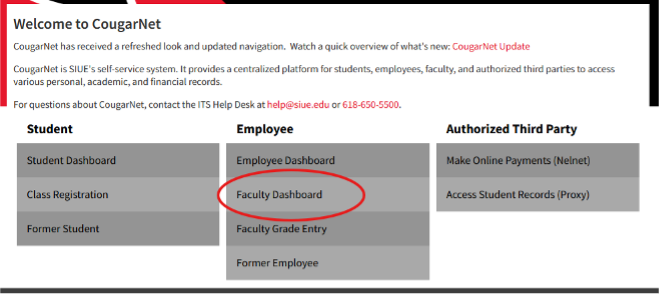
- Log in to CougarNet and select Faculty Dashboard.
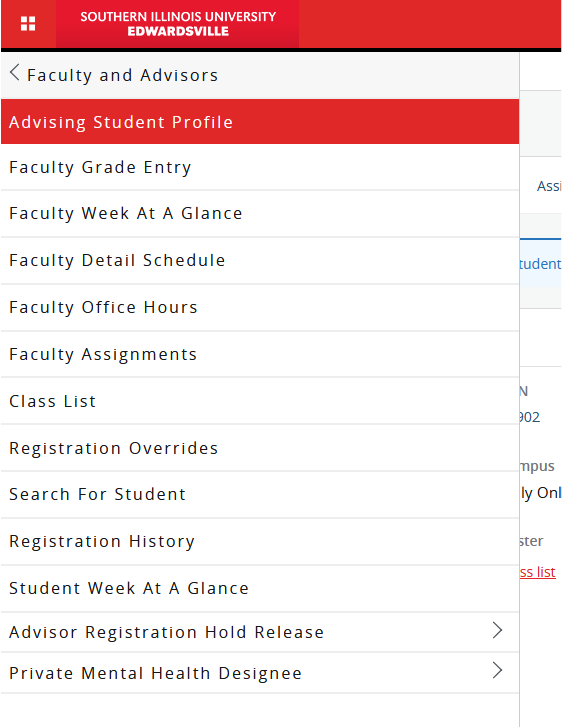
- Click the four squares icon in the upper left corner of the screen. Navigate to Faculty and Advisors > Advisor Registration Hold Release.
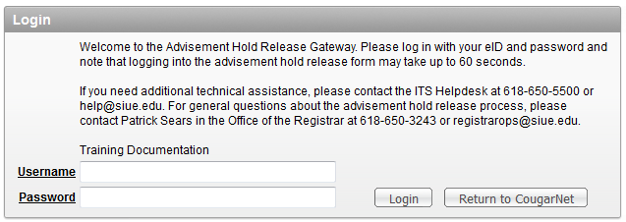
- Log in to the Advisement Hold Release Gateway using your eID and password
Releasing Advisor Holds -
- The Remove Holds tab will show the students with the Advisement Hold dependent on your level of access (e.g. AC, AP, AT, HM holds).
Each page will list fifteen students. You can adjust the number of rows to be displayed for this session by click on Actions Rows Per Page Selecting the number of rows you would like to be displayed.
Note – As you check the checkbox by the student you would like to update or release their holds, you can only check the rows that are displayed on that page. If you move to the next page, the previous students that are selected on the previous page will not be retained. Therefore, we recommend updating or releasing the holds of the student you have selected on that page before advancing to the next page.
- To release the student’s hold/update the To Date field, you will select the student by checking the checkbox next to their ID. Once you have the student(s) selected, click on the Release Student’s Hold button at the top of the page.
- Once you click Release Student’s Hold button, a confirmation box will pop up, click ok. At this point, a confirmation email will be sent your SIUE email and the student’s SIUE email stating that hold has been released.
- This will update their student record by inserting today’s date into the To Date field. Thus, releasing that hold.
To Update From Date on a Hold –
- To update the student’s From Date field on a hold, you will select the student by checking the checkbox next to their ID. Once you have the student(s) selected, click on the calendar icon next to the From Date text box. Select the date you would like to move this From Date too, then click Update From Date button.
- Once you click Update From Date button, a confirmation box will pop up, click ok. At this point, a confirmation email will be sent your SIUE email with the list of students you have updated their holds.
- This will update their student record by inserting the date selected into the From Date field. Thus, releasing moving the start of the hold to that selected date.
- You will now be able to view that student’s released hold on the Update Holds tab. Click on the Updated Holds tab at the top of page.
To utilize the Search and other tools within the form -
- The grid form interacts just like Excel. You can sort, filter or hide columns. These settings will not be saved. Therefore, once you log out and back into the form, it will reset to the default settings.
- You can do individual searches by typing in the search field. You can search on any of the information in each column (e.g. ID, Major, Last Name, Advisor Name, etc). Once you have entered the criteria, just click Go.
- Under Actions, you have the options to add Filters, adjust Rows Per Page, Format, Download the records you see and Reset the entire page.


